Structuring the Blog
This will be updated as I update the blog. Be aware!
- I need a blog to write my intricate adventures and to practice my english.
- I also need a system to forget about publishing the blog.
- And, I need a solution as cost-free as possible.
The solution? Push all my changes to my GitLab account and run a CI every time I commit a change. Pretty straightforward, right? Sorry, but NO …
The documentation is helpfull ?!
As I wrote in the first post, the hugo documentation can be a little “helpless”.
Is that case in the publication / deploy topic, even more about Gitlab Pages.
My best shot was searching for “hugo gitlab ci yml” in Google, and hope for the best.
Needless to say, that I found what I needed and created my .gitlab-ci.yml file.
You can see my sources in the file comments.
Maybe I need to criticize less, and do more in
hugo’s documentation, he?
Where we go ?
First try after a correct CI file, and I get an error. Why? let’s see:
$ hugo
Total in 1 ms
Error: failed to load modules: failed to download modules: binary with name "go" not found
Cleaning up project directory and file based variables
00:00
ERROR: Job failed: exit code 1
Great, I’m using the last method for using themes - the go modules - and I get this!
First question: in what image in hugo image based? In docker image.
Second question: which package manager docker image has? I do not know, and it seems anyone. Please, tell me if I’m wrong!
Let’s go to the work, podman
My first guess was to update and commit the CI file until I got a succes. But that means many commits, git history trashed, …
Let’s get the hugo image right now and open a terminal in it:
podman pull registry.gitlab.com/pages/hugo
podman run -it registry.gitlab.com/pages/hugo:latest /bin/sh
ls /bin
ls /sbin
apk
I’m using
podmaninstead ofdocker. If you want to know why, wait for another post. :smile:
- Pull the image from the registry we are using.
- The image do not have
bash, but we only need to try to install the go package. Let’s usesh. - Search for a program name to pop, and eureka!, it uses
apkpackage manager.
How awful … This work and time for a package manager I know. For who doesn’t know, apk stands for Alpine Package Keeper, and is the package manager for the container-oriented linux distribution Alpine.
Now, let’s try to install go:
apk add go
go version
After installing a bunch of stuff, including go, the work is done!
Let’s update the CI file with apk install go and run it again. The results were a success.
The last barrier: the DNS …
… and my provider. As the time of writing this post, my provider is GoDaddy. It is just to add a A or CNAME record and done!
Please, remove any previous A or CNAME records you have.
After that, it all seems correct, except the CSS:
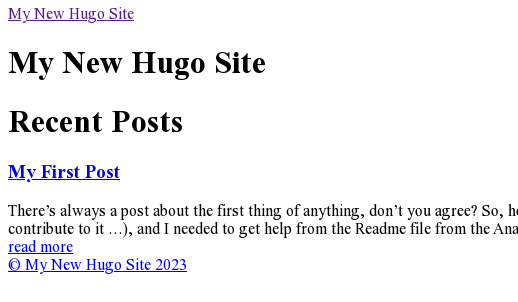
To correct this I need to correct the config.toml file, and done. Here is a screenshot:

I hope you liked this excursion. But this isn’t the end. I’ll update this post as I update the blog!